Applying Visual Effects to Clips and Shapes
In addition to letting you interactively clip image data, regions of interest, multi-ROIs, and meshes, additional visual effects can also be applied to the clipped region of selected objects, such as look-up table functions, edge contrast, and window leveling. Visual effects, which are available in the Visual effects box shown below, can also be applied to shapes such as boxes, capsules, cylinders, and spheres (see Shape Properties and Settings).
Visual effects for clips and shapes
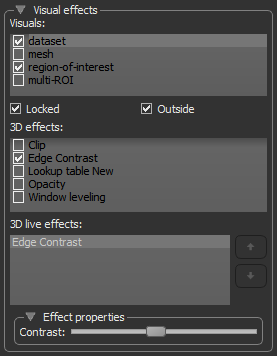
For a selected visual, you can choose one or more 3D effects that can be applied either to the inside or outside of the clipped region or shape. Selecting an effect in the 3D live effects box displays the properties based on the nature of the effect and includes controls, such as sliders, menus, and color swatches, that you can use to change its properties.
The following effects can be applied to the currently checked object(s).
| Example | Description | |
|---|---|---|
| Clip | 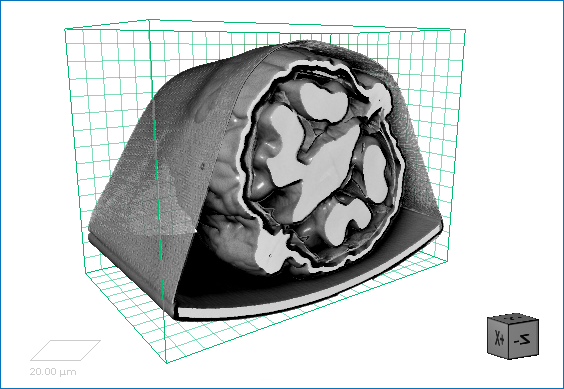
|
If selected, the data of selected visual(s) that corresponds to the inside or outside of the Clip box or shape will be clipped. |
| Clip ROI1 |
If selected, only the labeled voxels of the selected region of interest(s) that correspond to the inside or outside of the Clip box or shape will be clipped. Note This effect cannot be used in conjunction with 'Clip'. |
|
| Edge Contrast2 | 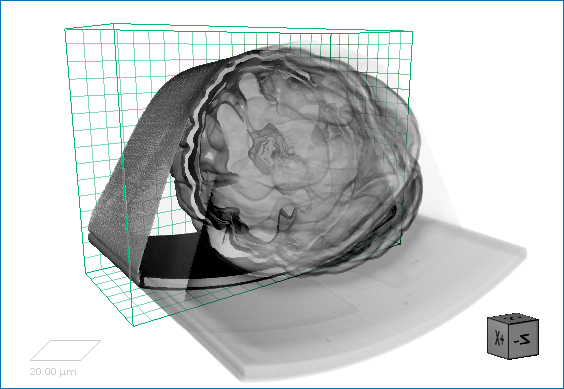
|
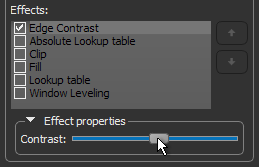
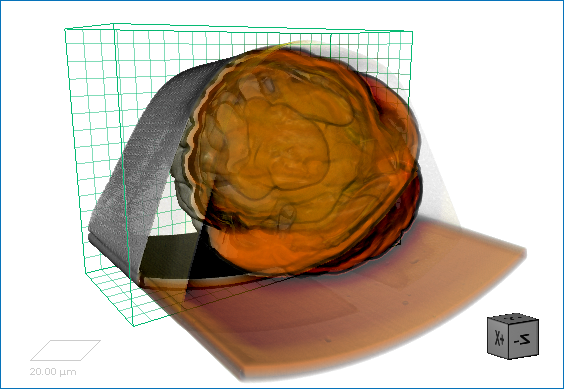
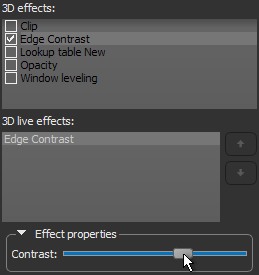
If selected, the intensity values of selected image data that corresponds to the inside or outside of the clipped region or shape will be modulated with the values of their gradient modulus to produce an image in which edges are emphasized and other features are semi-transparent.
The degree of contrast can be adjusted with the Contrast slider, as shown below.
|
| Look-Up Table2 | 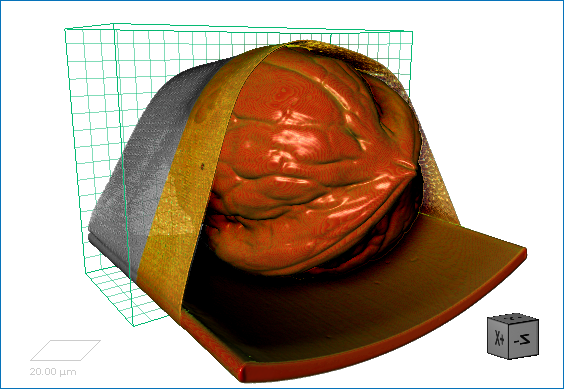
|
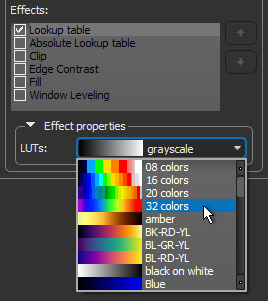
If selected, a look-up table function (LUT) or an absolute LUT will be applied to selected image data that corresponds to the inside or outside of the clipped region or shape. LUTs determine how regions within specific arrays of intensity are highlighted and how color is applied.
Look-up tables can be selected in the drop-down menu, as shown below.
|
| Opacity1,2 |
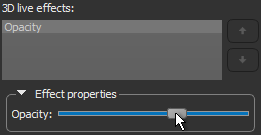
If selected, the opacity of the data of the selected visual(s) can be modified with the Opacity slider as shown below.
|
|
| Window Leveling1,2 | 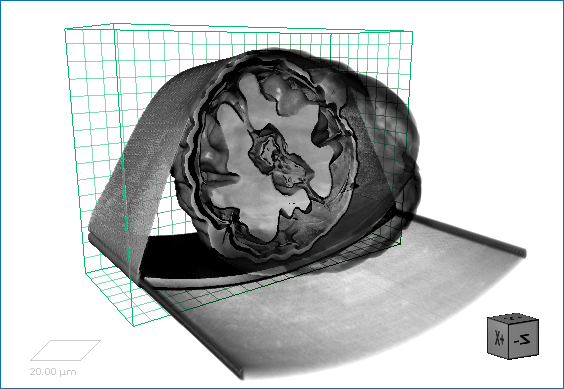
|
If selected, independent window level values can be applied to the data of selected visual(s) that corresponds to the inside or outside of the Clip box or shape.
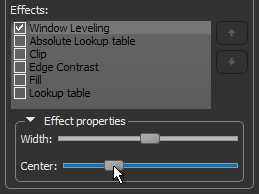
The width of the window and its center value, as well as gamma, can be selected with the sliders, as shown below.
|
2 Applicable to image data and image data corresponding to selected regions of interest and multi-ROIs.
 How to Apply a Visual Effect
- Add a Clip box or shape to the required 3D view (see Clip Tool and Adding and Editing Shapes).
- Adjust the Clip box or shape, as required.
- In the Visual effects box in the Clip panel or Shape properties panel, select the object that you want to apply the visual effect to.
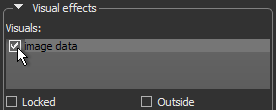
Note You can also choose the lock the Clip box or shape, as well as apply the visual effect to the outside or inside of the Clip box or shape. These options can be applied by checking or unchecking the Locked and Outside checkboxes.
- Select the required visual effect in the 3D effects box.
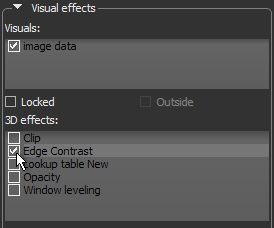
Note In some cases, you may find it advantageous to apply multiple effects to an object. For example, edge contrast and a look-up table.
-
Click the selected visual effect in the 3D live effects box and then adjust the related setting(s) in the Effect properties box.
Note Whenever an object is rendered, Dragonfly will apply the selected effects in the order in which they appear in the 3D live effects box. Reordering effects will have an impact on the final look of the rendering by either subtly or dramatically changing its appearance. If required, you can reorder selected effects with the Up and Down buttons on the right side of the panel, as shown below.
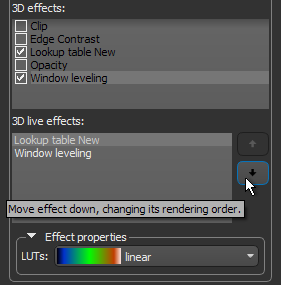
Note You may need to adjust an effect property after reordering.
